SiteView help
| SiteView help
|
SiteView
software provides two-point calibration for most of the loggers. If the source
signal like voltage or current can be connected to the logger while the logger
is connecting to the computer, you can calibrate the logger on-line. If the
source signal like a temperature or relative humidity is not available for
on-line calibration, you can calibrate the logger off-line after the logger has
recorded the low and The
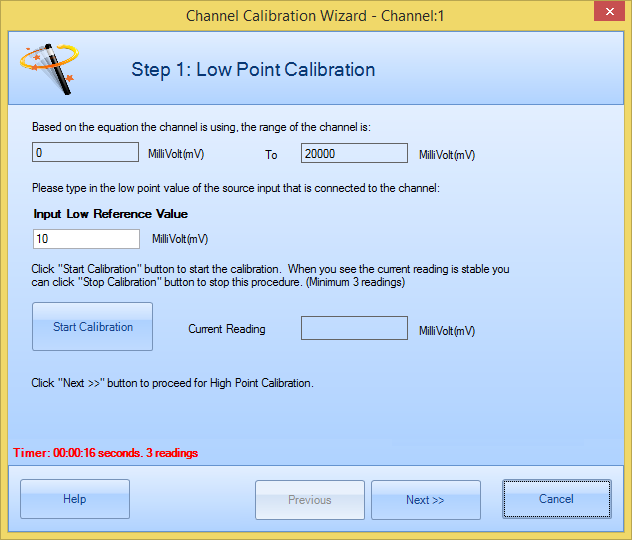
following dialog appears: The above
page allows you to calibrate the low point. Please adjust your input which
connects to the channel terminal strip to a low point value closes enough to
the lowest value of the channel. In the above example “0” is the lowest value.
Click Start Calibration button to start the
low point calibration. After the click, Start Calibration button changed to
Stop
Calibration. During the
calibration process the current real-time value is showing in Current Reading field. If you think
this value is stable you may click Stop Calibration
button. The above
page allows you to calibrate the Click Start Calibration button to start the
During the
calibration process the current real-time value is showing in Current Reading field. If you think
this value is stable you may click Stop Calibration
button. The above
page shows all parameters you have input as well as the values the system have
calculated. Two important values can be saved back to the logger by clicking
Save Parameters to the logger.
Those two parameters are: Calibration
Low Value and Calibration High
Value. If you click
Save Parameters to the logger
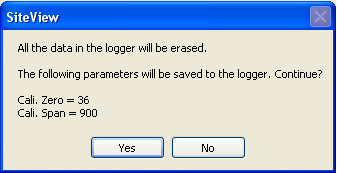
button you will get the below warning dialog. Click Yes to confirm the saving
process. If the
system saved the parameters back to the logger successfully, at the bottom
side of the dialog The calibration is
finished! will appear. You may
click Done button to close the
dialog. On the
logger status page the The
following dialog appears: In Step 1,
it instructs you how to configure the logger to record low and On-Line
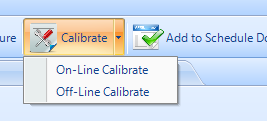
Calibrate
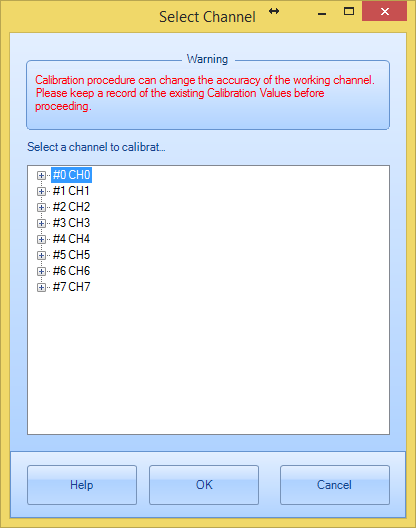
Select the
channel you want to calibrate on and click OK button. The following dialog
appears:
Click Next to proceed to the next
page.
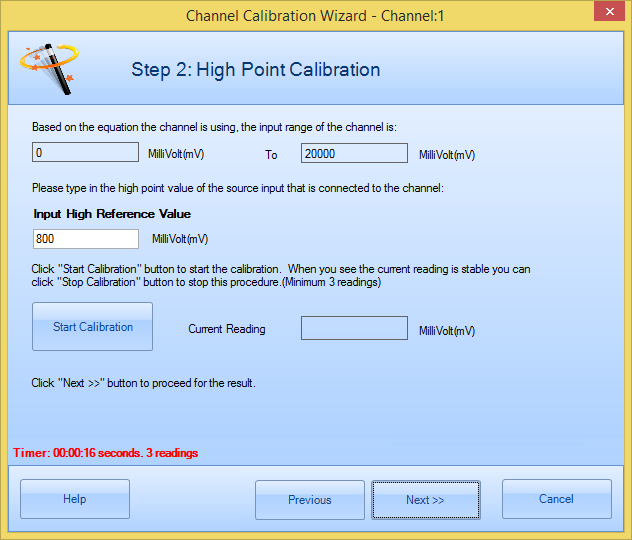
Click Next>> to proceed to the next
page.


Off-Line Calibrate
Click Calibrate button on the top of the
logger status page in SiteView and choose Off-Line Calibrate menu.
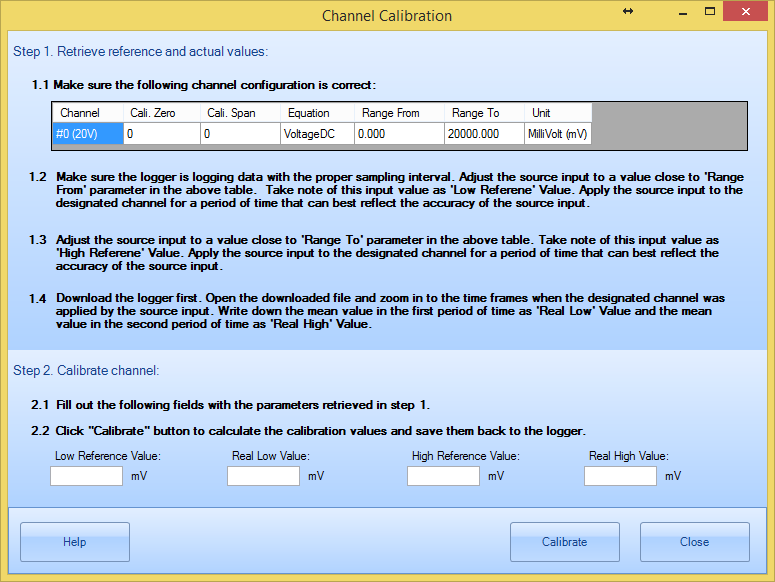
Once you
have obtained those four parameters, enter them into their fields
respectively. Click Calibrate button to calculate the final parameters and
save them back to the logger. The following dialog
appears: